 SEO strategy
Learn how blog publishers can improve Google Images visibility with relevant visuals, accurate alt text, crawlable image URLs, and Search Console reporting.
10 min read

To rank blog images in Google Images, start with a useful visual on a relevant page. Then give Google accessible image markup and accurate descriptions. These choices help Google discover the image and understand which searches it may suit. They cannot guarantee a particular search position.
An image can look correct in your blog editor while remaining difficult for Google to find or interpret. We recommend treating image SEO as a publishing workflow. Choose the visual, explain its purpose, check its delivery, and measure the page’s image-search traffic before deciding what to improve.
Article summary
Choose an image that helps readers understand the article. Its subject should connect directly to the page and remain clear at the size readers see.

Begin with the point you want the image to explain. A photograph, screenshot, or diagram earns its place when it gives readers useful information. An attractive image with a weak connection to the article gives you less relevant material to describe.
Consider an illustrative post about repairing a leaking garden tap. A close photograph of the repair helps explain the task. A general garden photograph offers less detail about the problem readers came to solve.
Use these checks when selecting a blog image:
When choosing an existing post to improve, connect image-search work to your publishing goals. A clear purpose makes the result easier to assess.
You can use a content measurement framework to decide which posts deserve attention and how image-search visits contribute to wider business outcomes.
Inspect the image inside the published layout. Then view it at a smaller size, where fine details become harder to distinguish. Ask whether someone unfamiliar with the article could identify its main subject.
Google Search Central’s image guidance, updated March 2, 2026, says sharp images appeal to users. A clearer thumbnail can increase the likelihood of traffic. That gives you a practical reason to preserve useful detail when preparing an image.
For a screenshot, inspect whether the relevant control or result remains readable. With a photograph, check whether the subject stands out from its surroundings. Crop unnecessary space when doing so makes the subject easier to understand.
Keep enough context to preserve the image’s meaning. A close crop can remove the detail that explains where a part fits or what a screenshot demonstrates. Choose the version that communicates the article’s point clearly, then assess its loading performance before publishing.
Describe what the image contributes to the article. To improve blog image visibility in Google Images, make its description and surrounding text accurate and consistent.
Use a short filename that identifies the subject. Google describes filenames as a very light clue about an image, so keep this step proportionate. An accurate name gives useful information without requiring an elaborate naming formula.
For example, an illustrative repair photograph could use repairing-leaking-garden-tap.jpg. A camera-generated name such as IMG00023.jpg gives little information about the subject.
Choose words that describe the actual picture. A filename about replacing a washer would misdescribe a photograph showing only the outside of a tap. Precision matters because the filename should agree with the visual and its page context.
Avoid adding several versions of the same search phrase. Extra keywords do little to clarify the subject and make the name harder to read. Complete this small task before uploading, then spend more attention on the image’s purpose and description.
Alt text communicates an image’s information or function when someone cannot see it. Google uses it alongside computer vision and page content to understand the image. Its guidance identifies alt text as the most important image metadata attribute.
Describe the detail that matters in this article. For an illustrative photograph of a repair, suitable text might be "Hand loosening the garden tap nut with a spanner." Include that detail only if the photograph actually shows it.
W3C’s Web Accessibility Initiative recommends the most concise description of the image’s purpose. Read your draft aloud and remove words that add no useful information. Google warns that keyword-stuffed alt text can harm user experience and appear spammy.
For a purely decorative image, use an empty alt="" attribute so assistive technologies can skip it. Decide based on the image’s role in that particular post. A visual that communicates useful information needs a description that preserves that information.
Place the image near the passage it explains. Google can use nearby text, captions, and image titles to understand its subject. The landing page therefore helps establish why the picture belongs in a particular search.
A caption is useful when it identifies a detail readers might miss or explains what they should notice. Write it for someone viewing the page. Leave it out when it would merely repeat an obvious description.
Suppose a software tutorial includes a screenshot of a completed settings panel. Place it beside the instruction that explains those settings. A caption could identify the selected option and explain why the example uses it.
Keep each piece of text useful in its own place. Alt text conveys visual information, while the article explains the task in more depth. Copying the same keyword phrase into every field adds repetition without helping readers understand the screenshot or its purpose.
Give Google an image URL it can discover and access. A visible picture alone does not establish that its underlying markup supports image indexing.
Work through these checks in publishing order, using your editor, page source, and Search Console where available:
src on the image element. Retain it when using <picture> or srcset.Lazy loading delays an image until it approaches the visible part of a page, called the viewport. This can help manage loading, but the implementation must let Google see the image.
Google Search does not interact with pages by scrolling or clicking. Its lazy-loading guidance says content should load when visible without depending on those actions. An image hidden behind a required click needs a different loading setup.
If you manage the site in Search Console, inspect the post with URL Inspection and examine the rendered result. Compare what appears there with the important images in your published article.
When an image appears only after interaction, look for an alternative loading option in your publishing settings. If your theme controls it, send the site maintainer the affected page and image. Explain the visible behavior and request loading that works when the image enters the viewport.
An image sitemap gives Google another route to image URLs it might otherwise miss. It can be useful when JavaScript reveals images that ordinary crawling struggles to discover.
Google’s sitemap reference, updated December 10, 2025, permits up to 1,000 <image:image> entries per <url> element. Each image entry requires <image:loc> to identify its URL.
If your publishing software generates image sitemaps, examine whether the affected image is included. Otherwise, ask the site maintainer to include it. The sitemap supplements discovery; the image still needs useful context on its landing page.
For images delivered through a content delivery network, Google’s guidance calls for verifying the image-hosting domain in Search Console. Its robots.txt rules must also allow crawling of the image files.
Google has deprecated several older image sitemap fields. Keep these out of new sitemap work:
Preserve the detail readers need while keeping image delivery efficient. Then use relevant metadata to identify the page’s preferred preview image.
Google Search supports these seven image formats when an image element references the file:
Choose an export option that preserves the useful information in your particular image. Compression reduces file size, but excessive compression can make text unreadable or remove important photographic detail.
Compare the exported version with the source at its intended display size. Inspect the areas readers need to understand, especially small labels or close-up details. Select a smaller file when those details remain clear.
Google also recommends matching the filename extension to the actual file type. Use your editor’s export or conversion function when changing formats. Renaming the extension alone does not perform that conversion.
Responsive delivery can provide versions suited to different displays. Review the published image after your software processes it, because that version is what readers receive. Judge the result by both its clarity and its loading behavior.
Preview metadata helps identify which image represents a page. This matters when a post contains several visuals and you want its main image associated with the article.
Google says Open Graph’s og:image can help influence preview selection. Schema.org properties such as primaryImageOfPage and BlogPosting.image can also identify a relevant image.
Structured data is machine-readable information describing page content. Applicable types can make an image eligible for certain rich results. Use them where the page genuinely matches a supported result type.
If your publishing interface offers a preferred image field, choose a visual that accurately represents the post. Ask the site maintainer which metadata that field controls when its purpose is unclear.
Keep the work in proportion. Preview selection and rich-result eligibility address specific display decisions. To rank blog images in Google Images, continue giving priority to accessible files, meaningful descriptions, and relevant landing-page content.
Use Search Console’s Image search type to assess traffic from the Google Images tab. Read the results at page level, then choose a concrete publishing improvement.
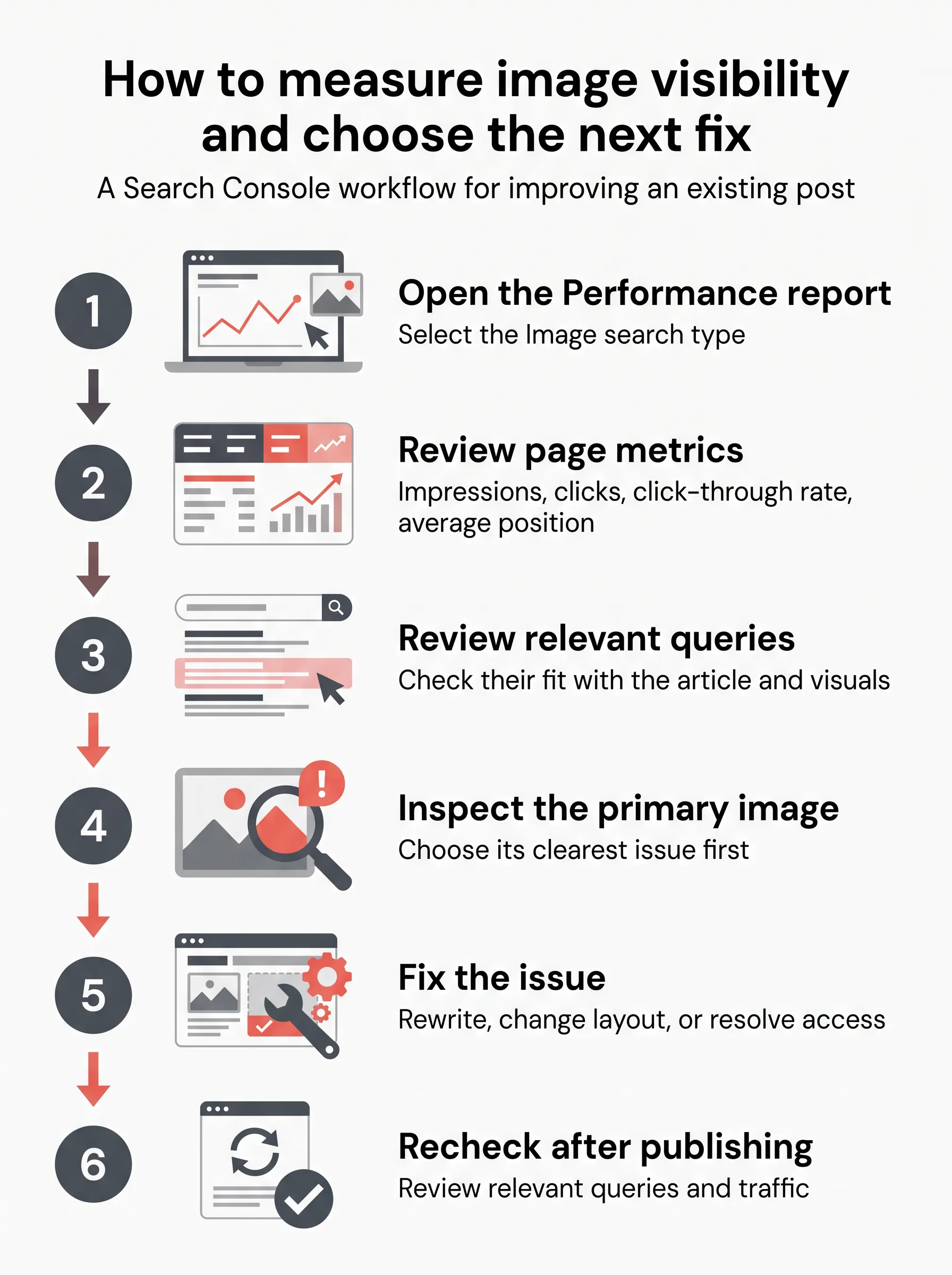
Open the Performance report and select the Image search type. Search Console Help defines this as traffic associated with results in the Google Images tab.
Review these metrics for the post you are improving:
Search Console treats separate images on the same page as the same result link for these measurements. Interpret the figures as evidence about the landing page’s image-search presence. They cannot identify the performance of each individual picture.
Review the queries associated with the page. Ask whether they fit the article’s subject and the visuals you have chosen. Relevant queries help you understand which reader needs the page is already reaching through image search.
Select an existing post and inspect its primary image. We recommend fixing its clearest issue first because that gives the work a defined purpose. Record what you change so you can connect later observations to the publishing decision.
An inaccurate description calls for a rewrite. A useful picture placed far from its explanation calls for a layout change. If Google cannot access the visual, resolve that delivery problem before refining its wording.
After publishing, return to the page’s image-search report and examine the relevant queries alongside its traffic. Use what you observe to choose the next improvement. Keep a short record of the page, the change, and the reason behind it.
Make that check part of your next post’s publishing process. Choose the image deliberately and complete its description before publication. When delivery requires a technical change, give the maintainer one affected URL and a precise account of the problem.
Yes, use a short, descriptive filename that accurately describes the image, but do not treat keywords in the filename as a ranking hack. Google says a filename is only a very light clue about the image’s subject, not a guarantee of placement.
No, Google does not say every blog image needs an image sitemap. An image sitemap can tell Google about images it might not otherwise find, including images reached through JavaScript.
Use the Image search type in Search Console’s Performance report to measure traffic from Google Images. The report shows clicks, impressions, click-through rate, and average position for results shown in the Google Images tab. Separate images on the same page are treated as the same result link, so the report is not a per-image ranking scoreboard.

