
A sharp product photograph can still lead to a poor match when its listing describes another color or its image URL blocks crawlers. To optimize product images for visual search, you need a consistent path between the photograph and the item a shopper can buy.
Visual search lets shoppers use an image, or part of one, to find similar products. We recommend preparing your catalog in publishing order: choose accurate images, describe them clearly, make them accessible, and connect them to matching product records. Implementation details vary by ecommerce platform and Google discovery surface.
Article summary
Start by identifying where you want shoppers to discover your products. Google Images, Google Lens, and the Shopping tab have different documented relationships with product data.
Google Search Central explains that product structured data can add product annotations in Google Images. Structured data is machine-readable information connecting page content with named product details. Google Images also uses images supplied through Merchant Center, while Lens can use image structured-data properties when available.
These are the documented product-data routes for the three surfaces.
| Google Images | Google Lens | Google Shopping tab | |
|---|---|---|---|
| Product-data route | Product markup; Merchant Center images | Image markup when available | Merchant Center participation required |
Choose your publishing work according to those routes. A retailer pursuing Shopping needs a Merchant Center workflow alongside its product pages. A team preparing for image-based discovery also needs accessible images and useful page context, even when feed work belongs to another department.
For Shopify catalogs, a broader store SEO workflow can help coordinate Merchant Center and Search Console responsibilities. Assign an owner for image assets and another for product-data corrections when different people manage them.
Keep this work focused on external discovery. Building an on-site feature that accepts shoppers' uploaded photographs is a separate software project. You can prepare product listings without making that implementation decision.
Google's merchant-listing documentation says structured-data features may appear, but their display is not guaranteed. When markup errors arise, a structured data troubleshooting guide can help organize corrections before you change the images themselves.
Page content needs an owner too. If you manage Shopify listings, connect image changes with your product page content workflow so visible descriptions remain aligned with the photographs you publish.
Choose images that make the offered item and its selected variant easy to recognize. Then apply the image specifications of each destination you use.
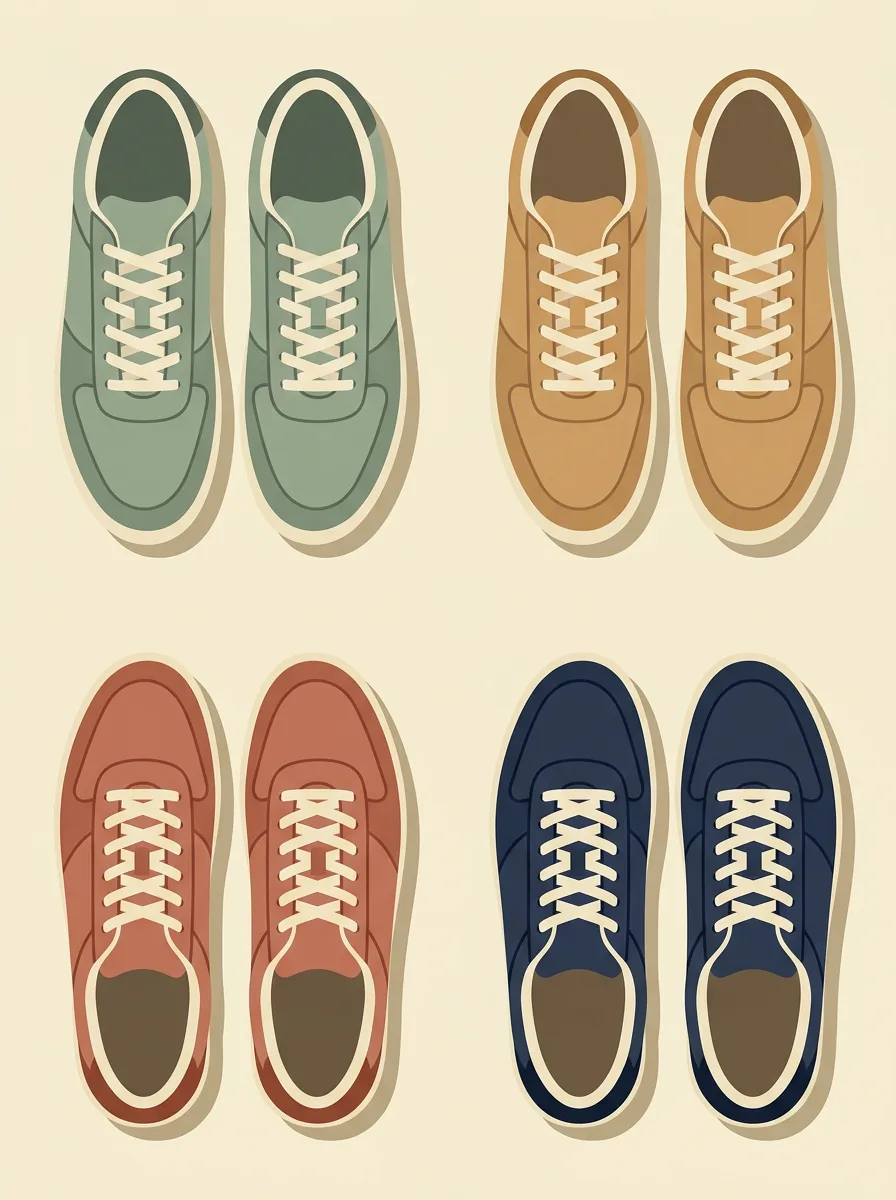
Your lead photograph should show the actual product clearly and in focus. For Merchant Center, avoid promotional overlays, watermarks, and borders. Its guidance recommends a clean, neutral background and product framing that fills 75%–90% of the image.
Give the object enough room to remain complete. Tight cropping can remove the shape or component that distinguishes one item from another. Review the image as a catalog manager would review a shelf label: can you identify exactly what the customer will receive?
Merchant Center recommends images around 1500 × 1500 pixels or larger where possible. Its maximums are 64 megapixels and 16 MB. Use those limits when preparing feed assets, while keeping recognizable product detail in the exported file.
Merchant Center has announced a 500 × 500-pixel minimum for all products beginning January 31, 2027. As of November 4, 2026, that change was announced but not yet applicable. Build the new minimum into upcoming asset replacements so smaller legacy files do not remain in your publishing workflow.
Match each variant with a photograph of the option being sold. A different color, pattern, or finish can change the visual identity of the listing. Review the selected option together with its lead image before approving the product page.
Supporting images should contribute information the primary photograph cannot show. Merchant Center recommends at least five additional images, and its feed supports up to 10 additional-image URLs. Choose distinct views that help explain the item.
Use these checks when selecting the supporting set:
Merchant Center's supplementary-image guidance specifically warns against making excluded accessories appear included. Review styled scenes with that purchasing question in mind. A useful photograph should explain the offer without creating uncertainty about its contents.
For generative-AI-created images submitted to Merchant Center, preserve the metadata identifying their origin. This Merchant Center requirement is already in force. Include it in asset approval whenever generated imagery enters your catalog.
The guidance names the IPTC DigitalSourceType metadata field. Relevant values include TrainedAlgorithmicMedia, CompositeSynthetic, and AlgorithmicMedia. Carry the applicable origin information through to the image submitted in your feed.
Ask whoever supplies generated assets to retain that information in the delivered files. Record preservation as an acceptance condition, alongside visual accuracy. Catalog staff can then request a corrected asset when the delivery lacks its required origin information.
Keep the metadata decision separate from your visual review. Inspect whether the image faithfully represents the offered variant and included components. A file can retain its origin metadata while still needing correction because its depicted product differs from the listing.
Use natural descriptions that identify the visible product and its distinguishing details. Google uses alt text alongside computer vision and page content to understand images.

Alt text provides a text description of an image, including for people using screen readers. Google Search Central calls it the most important image metadata. Describe what the photograph contributes to the listing, using language a customer would understand.
For an illustrative catalog entry, imagine a navy canvas backpack with tan straps. Its main photograph could use the description "Navy canvas backpack with tan straps, front view." A detail photograph could say "Close-up of the backpack's brass buckle and tan strap."
Those descriptions identify the subject and explain why the images differ. Avoid inserting claims such as "best price" or repeated product-search phrases. Google warns against keyword stuffing, and those additions do little to explain the photograph.
We recommend reviewing alt text while looking at the corresponding image. This makes copied descriptions easier to spot when several views share a product page. Mention a material or detail only when it accurately describes the depicted product.
To optimize product images for visual search across a catalog, define a writing pattern without forcing identical text. Product identity comes first. Add the visible variant or view when it helps the description distinguish that image.
Use short, descriptive filenames when preparing new assets. Google describes filenames as very light clues about an image's subject. Give filename cleanup a supporting role after correcting inaccurate photographs and descriptions.
An illustrative filename such as cream-ribbed-ceramic-vase-side.jpg describes its subject more usefully than a camera-generated identifier. Keep naming consistent enough that catalog staff can select the intended asset during upload.
Nearby text carries more context. Google recommends placing images near relevant text, so keep the product name and description close to the gallery. Ensure the visible description supports the photographed color, finish, and included contents.
When you replace an image after a product change, review the nearby copy during the same edit. Otherwise, an updated photograph can sit beside an old description. The page should give shoppers a coherent account of the current offer.
Treat each image description as part of the listing's editorial maintenance. A catalog with accurate photographs but stale text still gives conflicting signals. Resolve those conflicts before spending time expanding filenames or adding more descriptive phrases.
Publish images through accessible HTML and connect their URLs to the correct product records. A photograph appearing in your browser does not establish that Google can discover and fetch its file.
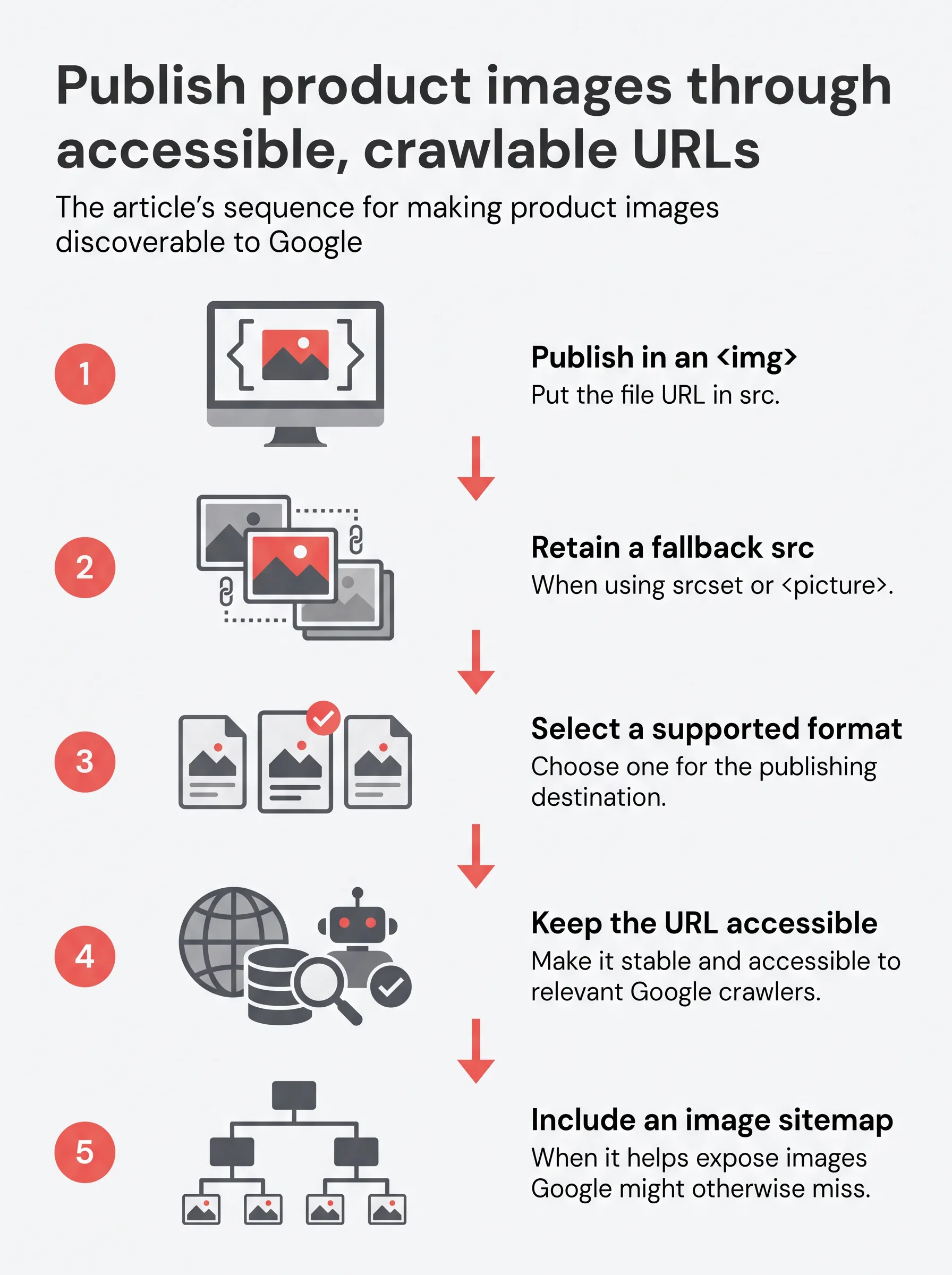
Google Search Central says Google discovers images through an HTML <img> element's src attribute. CSS background images are excluded from Google's image indexing. If your product gallery relies on backgrounds, request a template correction.
Use this publishing sequence with your platform settings or the person responsible for your store theme:
<img> element with a file URL in src.src when responsive delivery uses srcset or <picture>.Google Search image indexing supports the following formats:
For Merchant Center feeds, choose JPEG, WebP, PNG, non-animated GIF, BMP, or TIFF. JPEG, PNG, and WebP are practical choices when one asset must serve both destinations.
Merchant Center requires image access for Googlebot and Googlebot-Image. Ask your site administrator to remove applicable blocks in robots.txt if those crawlers cannot fetch feed images. An image sitemap can also include image URLs hosted on another domain.
Follow the product identity across the page and its data. Begin with the variant a shopper selects, then inspect which primary photograph appears. The product description should describe that same offered item.
Connect the image URL through the product's Schema.org Product.image property. In Merchant Center, image_link supplies the primary image, while additional_image_link supplies supporting images.
Google recommends distinct variant URLs that can preselect the correct image, price, and availability. Use your platform's variant-linking controls where available. Then open the destination from the product record to inspect the selected option a shopper will encounter.
Consider an illustrative oak dining chair offered with natural and black finishes. If the black variant's feed opens a page showing natural oak, correct the variant destination or its selection behavior. Replacing the photograph alone would leave the underlying product association unresolved.
Align feed titles and descriptions with the landing page during the same correction. After deployment, inspect Merchant Center product diagnostics. Use Google's Rich Results Test and supported Search Console workflows to validate structured data and review reported issues.
When one correction affects a shared template, review another product using that template. This helps distinguish a single incorrect asset assignment from a publishing rule that needs changing across the catalog.
Choose a representative product family and run it through the complete publishing workflow before changing the wider catalog. Include variants and supporting photographs so the pilot tests more than a single lead image.
Keep a simple audit sheet in the tool your catalog team already uses. Give each offered variant its own row, making mismatches visible without specialist software.
Record these fields for each variant:
Review the completed rows together. Repeated wrong-image assignments point toward a catalog mapping problem, while repeated missing descriptions call for an editorial workflow change. Assign corrections according to the cause so staff avoid fixing the same symptom manually on every listing.
We would resolve inaccessible files and incorrect variant matches before expanding the image collection. Those problems interrupt the connection between the asset and the purchasable item. Additional photography becomes more useful once that connection is accurate.
Decide which corrections belong in your upload process and which belong in the store template or feed mapping. Put repeatable requirements into the relevant publishing checklist. Keep individual creative judgments, such as choosing the clearest detail view, with the person reviewing the product.
You can now optimize product images for visual search as a catalog-maintenance task with named owners. Select the pilot family, complete its audit, and resolve the shared publishing faults before approving the next product group.
Optimize product images for visual search by showing the exact item clearly, writing natural alt text, placing the image beside matching product information, and ensuring crawlers can access its URL. Google also uses alt text with computer vision and page content, while descriptive filenames provide only very light clues.
For Google Shopping, Google recommends product images around 1500 × 1500 pixels or larger where possible. It announced a minimum of 500 × 500 pixels for all products starting 2027-01-31; as of 2026-11-04, that minimum was announced but not yet applicable.
Yes, alt text helps Google understand product images, but it works alongside computer vision and page content rather than acting alone. Describe what each image actually shows instead of repeating search keywords.
For Google Merchant Center product listings, at least five additional images are recommended, but supplementary images are optional. The feed supports up to 10 additional-image URLs, so five additional images are a recommendation rather than a universal visual-search requirement.
No, Google Merchant Center is not required for every Google Search appearance. Merchant Center participation is required for the Shopping tab, while product structured data can add annotations in Google Images and Lens can use image structured data when available.


 AI search