 Technical SEO
Learn why Google may omit video thumbnails from blog posts and how site owners can check watch-page eligibility, indexing, player access, thumbnails and metadata.
10 min read

If you are wondering why Google isn't showing video thumbnails for blog posts, start with the video's role on each page. A working player establishes that visitors can watch the video. Google's video-result requirements involve additional checks.
A missing preview in Search is a different problem from a missing image inside your player. Google generally needs a page focused on watching a video before it can show that page as a video result.
We recommend checking eligibility before changing code. Then use Search Console to separate page indexing from video detection, investigate access problems, and review the video's metadata.
Article summary
A text-led article with a supporting video can remain visible in Search without receiving a video thumbnail. First decide whether watching the video is the page's main purpose.
Google announced on April 13, 2023, that video thumbnails would appear beside Search results only when the video was the page's main content. Its video SEO guidance defines a watch page as a page whose main purpose is showing a single video.
Google specifically identifies a blog post where a video complements the text as outside that watch-page format. That distinction can explain the missing thumbnail even when the player loads correctly and the article is indexed.
Consider an illustrative example. Your business publishes a written guide to replacing a filter, with a brief demonstration embedded halfway through. Readers can complete the task using the written instructions, so the clip supports the article.
A separate page built around watching the full demonstration has a different purpose. Its title and surrounding explanation can help visitors understand what they will watch. The video remains central to the visit.
Review the page as a visitor would. Ask what the title promises and whether watching the video fulfills that promise. Moving an incidental clip higher on the page leaves its supporting role unchanged.
Make this decision before investing time in markup. Additional metadata can describe a video accurately, but the underlying page still needs to satisfy Google's eligibility requirements.
Google Search Central's Visual Elements Gallery describes text, image, and video results as separate result types. A picture beside an article therefore provides no evidence that Google indexed its embedded video.
This matters when you compare your pages with competitors. A competitor's illustrated article result may look similar to a video result at first glance. Identify the result type before trying to reproduce its appearance.
Video-seeking queries are more likely to produce video results. The searcher's purpose therefore matters alongside the page's setup. An eligible page can appear differently across searches because Google selects the result presentation.
Keep your diagnostic question specific. You are investigating whether Google can index and present the embedded video, while the article itself may already appear successfully.
Record the affected page and the search where you noticed the missing thumbnail. That gives your investigation a concrete starting point and keeps separate result types from becoming one vague visibility problem.
Inspect the page before diagnosing its video. Search Console's URL Inspection tool and Video indexing report answer different questions, so use them in sequence.
A page must be indexed before it appears in the Video indexing report. Starting with that report alone can therefore conceal the earlier page-indexing problem.
Use these checks on one affected blog-post URL:
URL Inspection saying a URL is on Google establishes eligibility to appear in Search. A particular presentation, including a video result, remains a separate decision.
Pay attention to the Google-selected canonical. If Google chooses another URL, investigate that selected version when assessing what Google indexed. Otherwise, you may spend time examining a page version outside the indexed representation.
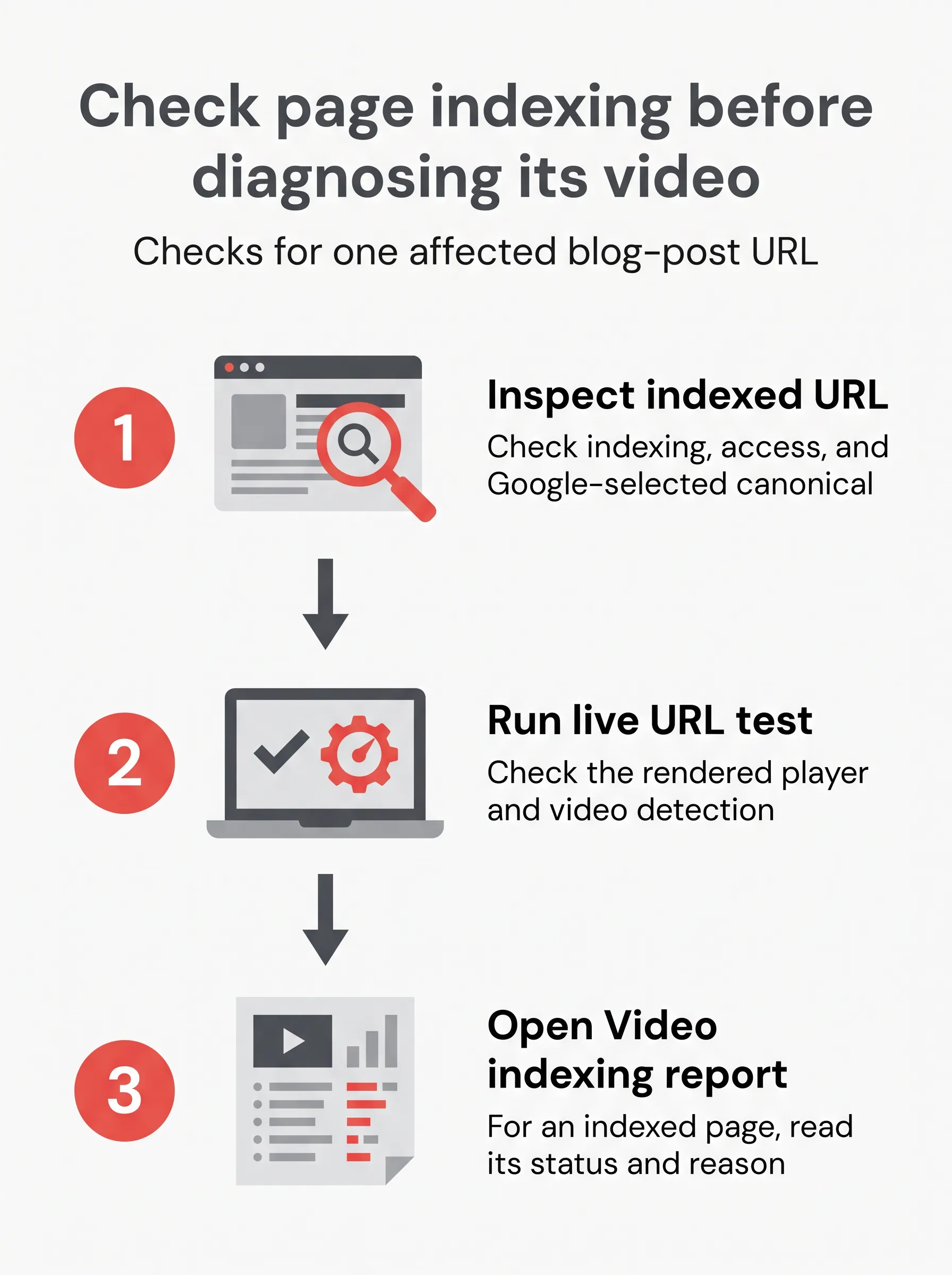
The live test can report that Google detected a video. It does not establish whether that video is indexed. Detection means Google found the video in the tested page; indexing is a further state.
Compare the indexed information with the live result. A recently changed player may appear in the live rendering while the indexed information still reflects an earlier page version.
The Video indexing report uses statuses such as "Video indexed" and "No video indexed". An issue such as "Video isn't on a watch page" points directly to page purpose.
Follow the reason shown for your URL. A watch-page issue calls for an editorial decision about the page's purpose. A player that Google cannot detect calls for a rendering investigation.
This is why Google's separate reports are useful when diagnosing why Google isn't showing video thumbnails for blog posts. They prevent a page-indexing problem from becoming an unnecessary thumbnail replacement.
Keep a short record of the indexed status, live detection result, and video-indexing reason. These observations give you a baseline for judging the next change.
Google needs to find the player in the rendered page and retrieve a usable thumbnail. A video working in your browser leaves both requirements worth checking.
Google's video SEO guidance identifies standard HTML elements it can use to discover videos. These elements give the rendered page a recognizable video or player reference.
The supported elements include:
<video><embed><iframe><object>A JavaScript-injected player should appear in the rendered HTML. Use the live test's rendered view to assess what Google receives after the page runs its scripts.
Google's guidance says loading the video should not require a user action. If a visitor must click a placeholder before the player exists, investigate the embed's loading settings.
Distinguish loading the player from starting playback. Your diagnostic task is to establish whether Google can discover the video when it renders the page.
A third-party embed can qualify. Google may index a YouTube or Vimeo video on both the publisher's page and the host's page when each meets its indexing criteria.
Replacing the host therefore does not resolve an underlying watch-page issue. Examine the rendered embed and your page's eligibility before considering a hosting change.
Google requires a valid, stable thumbnail URL that its crawlers can access. Open the image address directly while signed out to identify an obvious login requirement.
Then review the image settings and any crawler restrictions available through your website or hosting controls. Ask whoever manages those controls to address restrictions you cannot change.
Google's thumbnail requirements translate into these checks:
robots.txt that prevent retrieval.Alpha describes opacity. If you cannot inspect that value in your image software, ask the person supplying the image to provide one meeting the requirement.
A moving preview introduces another access requirement. Google needs to fetch the video file at a stable URL to make that preview eligible.
The max-video-preview setting can limit moving-preview length. Static video-thumbnail eligibility still depends on the page, video, and thumbnail requirements described above.
Use structured data to describe the video accurately and a video sitemap to help discovery. Apply these signals after resolving page-purpose and access problems.
Google's video structured data documentation lists name, thumbnailUrl, and uploadDate as required VideoObject properties. Each should accurately describe the video available on that page.
Review the values your CMS or embed integration produces. A valid field containing the wrong video's information still leaves Google with conflicting descriptions.
The contentUrl property identifies the actual video file. The embedUrl property identifies the player. Choose the property that accurately describes the URL you can supply.
For an embedded video, inspect what the integration supplies before adding another markup block. Keep the description consistent with the visible video and the page's other metadata.
Use this implementation checklist when reviewing your setup:
Google states that valid structured data does not guarantee a search feature. Treat a successful test as evidence that the markup passes validation, then continue with video-indexing diagnosis.
A video sitemap supplies additional discovery information about videos on your website. Google's guidance identifies recently added material and content ordinary crawling might miss as useful cases.
If your CMS provides video sitemap settings, review the entry for the affected page. The listed video should relate to the page where visitors can watch it.
Google also requires the referenced video files to be accessible to Googlebot. A sitemap entry pointing at an inaccessible resource leaves the retrieval problem in place.
Compare the sitemap's video details with the page and its structured data. When you change the video or thumbnail, keep those descriptions aligned through the same publishing workflow.
This review is especially useful when a CMS manages metadata separately from the visible embed. Inspect the generated information for the affected post before changing settings across your entire blog.
Discovery signals help Google locate and understand content that already meets the relevant requirements. A supplementary clip retains its supporting role after you add a sitemap entry.
If the report identifies the page's purpose as the issue, return to that decision. Repeatedly resubmitting unchanged metadata leaves the reason for exclusion unresolved.
Your next action should follow the specific state you found. Keep the scope small enough that you can assess the effect on the affected URL.
Use the evidence to choose among these outcomes:
A dedicated page needs an editorial reason to exist. Decide what someone comes to watch and provide enough surrounding explanation to make that viewing choice clear.
For a technical correction, write down the issue and the change made. That record helps your team connect a later report change with the work that preceded it.
After publishing the change, run a live URL test and inspect the rendered page again. Check the specific condition you intended to fix before requesting indexing.
URL Inspection allows an indexing request after a change. Google still decides whether to index the content and how to present it in Search.
Knowing why Google isn't showing video thumbnails for blog posts lets you assign the right task. A content lead can resolve page purpose, while the website manager handles a demonstrated access or implementation fault.
Start with one affected URL in Search Console. Compare its indexed information with the live rendering, then act on the video-indexing reason attached to that page.
Google Search may omit a video-result thumbnail when a video is supplementary to a text-led blog post. Google announced on April 13, 2023, that video thumbnails would appear next to Search results only when the video is the page’s main content; its guidance says a blog video that complements the text is not a watch page.
Google Search may omit a video result if the page is not indexed or selected as canonical, the rendered page does not expose the player, the page is not a watch page, or the video has an indexing issue. URL Inspection checks the page and live video detection; the Video indexing report gives status for indexed pages.
To make a moving video preview eligible in Google Search, allow Google to fetch the video file at a stable URL. The `max-video-preview` setting can limit preview length, but it does not force Google to show a static video thumbnail.
Yes, a blog post can appear in Google Search as a text result or image result without appearing as a video result. Google treats text, image, and video results as separate types, so a missing video thumbnail does not mean the article itself is absent from Search.
No, `VideoObject` structured data does not guarantee a video thumbnail in Google Search. It describes details such as the video’s name, thumbnail URL, and upload date, but Google says valid markup does not guarantee that a video result will appear.

